

Appearance
Editing & Cancelling Appointments
Modifying an appointment
To modify an existing appointment, find it on the calendar for a location or user, then click it. You can only modify or cancel appointments in the future. Clicking the appointment opens the information pop-up below. You can also double click an appointment to open the edit dialogue directly.
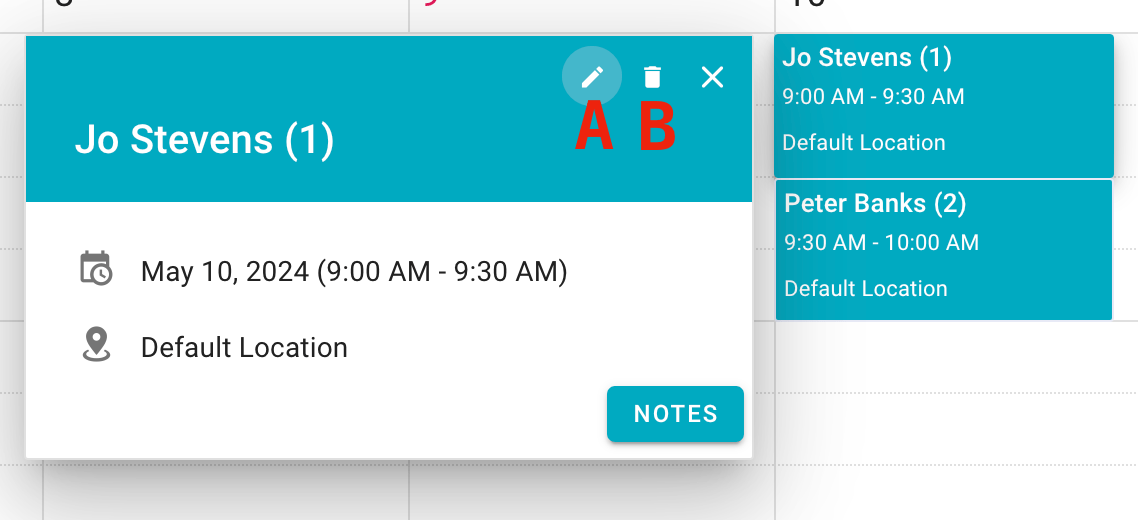
- Click to edit the appointment.
- Click to cancel the appointment.
NOTE
You cannot modify the start time or the patient assigned to an appointment. Instead, cancel the appointment and create a new one.
You can modify the duration of the appointment, the staff members or location assigned to it, and the text note.
Cancelling an appointment
To cancel an appointment, press the delete button highlighted above. The appointment will be removed from both the user and location calendars, but will remain visible in the patient's record marked as cancelled. You cannot mark a past appointment as cancelled.