

Appearance
Patient Groups
Simple patient groups
You can create groups of your patients to more effectively manage your caseload. Lists can be shared between your users, or private per user.
Managing groups of patients
You can view a list of patient groups by clicking Groups under Patients in the navigation menu. From here you can create, edit and delete groups.
Available group settings:
| Item | Description |
|---|---|
| Name | The name of the group |
| Description | A description of the group |
| Private | If switched on, the group is only visible to the user who created it. Otherwise, groups can be viewed and modified by all users who are able to modify patients. |
Viewing and changing a patient's group membership
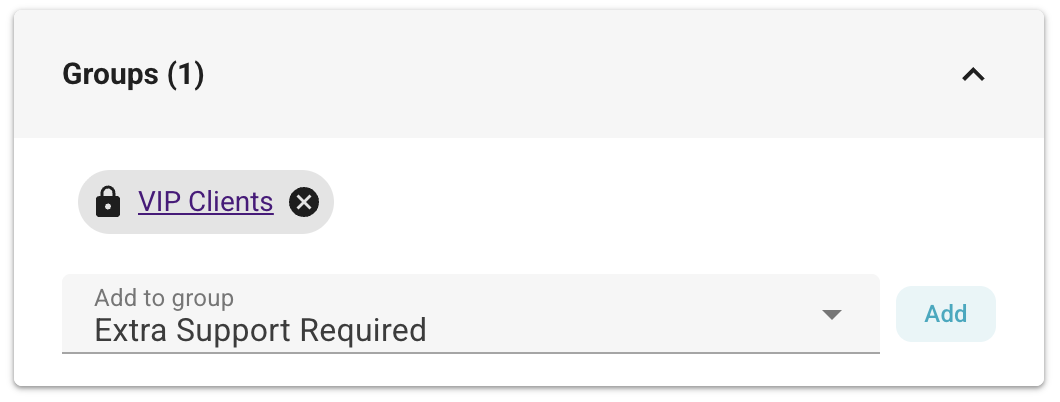
To view the groups that a patient is in, open their patient profile page and click the groups box. Groups are then listed, with private groups being marked with a padlock icon.
To remove patients from a group, press the delete button. To add patients to a group, use the dropdown box underneath the list.
Adding patients to a group in bulk
To add patients to a group, select them in the list of all patients (or in search results), select the group and click the Add to Group button.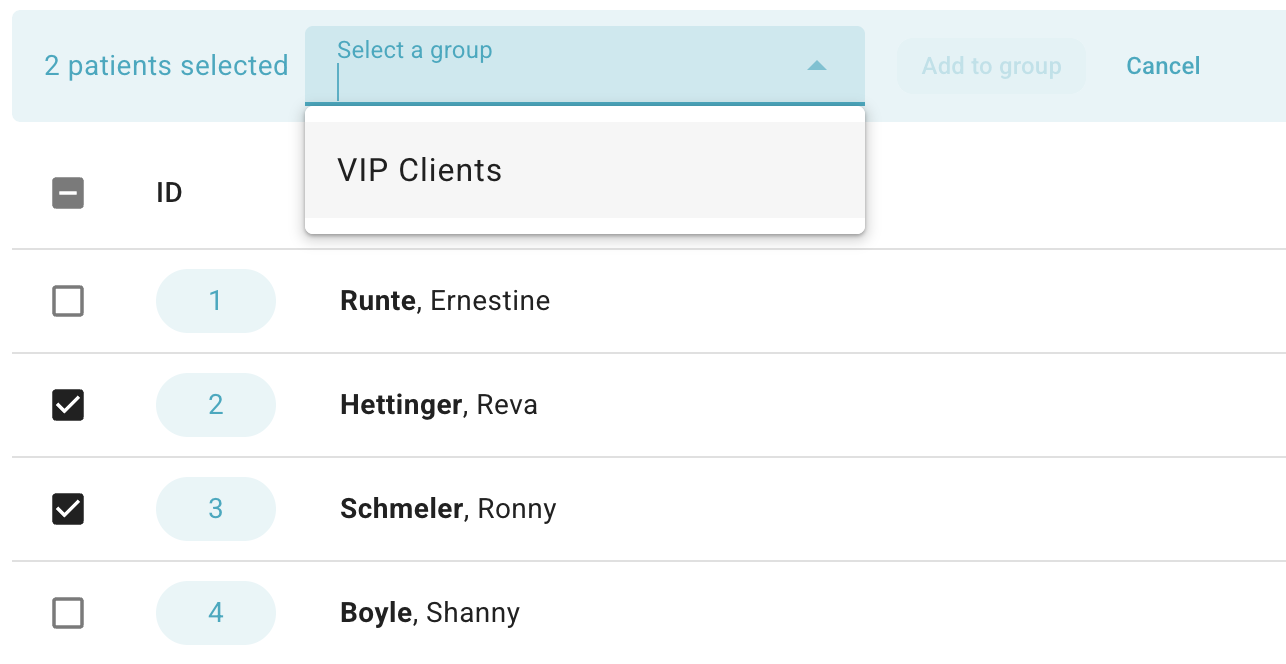
Viewing all patients in a group and removing in bulk
To view the patients within a group, click Groups in the left-hand menu. Then click the name of the group you wish to view. From this page, you can also select patients to remove from the group if required.