

Appearance
Appointment Notifications
Notifying your clients about appointments
Secure Clinic can automatically notify your clients by email or SMS. Notifications can be sent for the following events:
- When an appointment is created
- When an appointment is cancelled
- Reminder notifications when an appointment is approaching
To select which events trigger notifications, visit the calendars page within the settings menu.
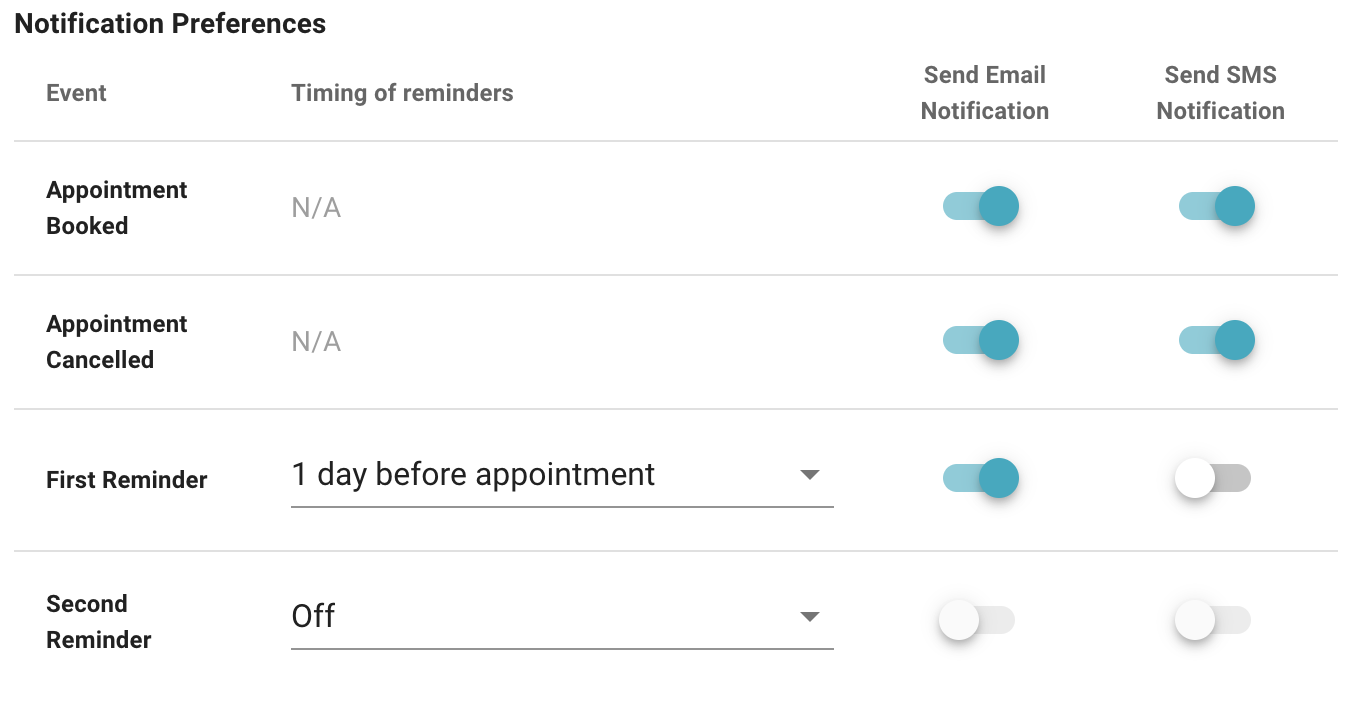
Select which events to send either email notifications or SMS text messages for.
Appointment confirmation and cancellation messages are sent immediately when appointments are created or cancelled.
You can choose to send one or two appointment reminders to your clients. Pick the number of days in advance to send the reminders; reminders are sent in the morning. You can send appointment reminders between 1 and 14 days in advance.
Setting up email notifications
Before you can send email notifications, you must provide an email address that your clients can reply to. A system administrator sets this in Settings → Email & SMS; the same address is used for every email sent to your clients, including patient forms.
Email notifications cannot be turned on until a reply-to address has been saved. If one is missing, the calendar settings page shows a warning with a link to Email & SMS settings. For the same reason, the reply-to address cannot be removed while any appointment email notification is still turned on, or while form reminders are turned on and forms sent by email are still waiting for a reminder.
Email notifications are sent to the email address recorded for your client. If this is missing or invalid, an error message is displayed after you create or cancel the appointment.
Setting up SMS notifications
SMS notifications appear on your clients' phones as being from the SMS Sender ID set in Settings → Email & SMS. This can be up to eleven letters or numbers long, and can use the symbols _ - & or +.
SMS notifications are sent to the phone number recorded for your client. If this is missing or invalid, an error message is displayed after you create or cancel the appointment.
Sending SMS notifications requires your account to be topped up with SMS credits.
Viewing sent messages
Every email and text message sent to a client, including appointment notifications and patient form links, is listed on the Messages tab of their patient record, with its delivery status. Select a message to see what was sent.