

Appearance
Logging In & Two-Factor Authentication
TIP
If you need help starting your free trial in order to be able to follow these steps, read our previous article on taking your first steps.
Logging in for the first time
To log in to your new cloud, visit the web address you chose for your system. This will have been shown to you at the end of the setup process and also emailed to you. When you visit this page, you are presented with the login screen. Enter the email address and password you supplied for your admin user.
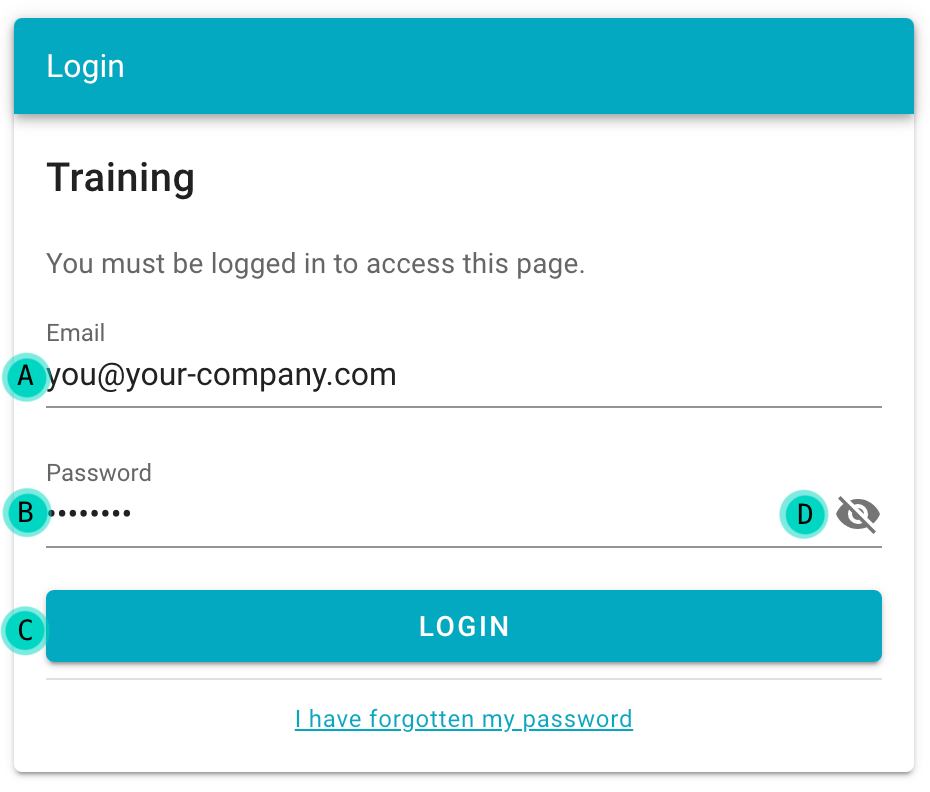
- The email address you used when creating your system
- Your previously created password
- Click this button to login
- This button allows you to view the password you have entered, or hide it again
Setting up two-factor authentication (2FA)
WARNING
You will need a mobile device to complete this step.
Two-factor authentication (2FA) is one of the main ways we keep your data protected. Each time you log in, you are required to provide a unique number generated by your mobile phone or other device. This way, even if your password is compromised, your account remains secure. You will need to set this up to continue, and will be prompted to do so as soon as you log in.
If you haven't already got a 2FA app installed on your phone, you will need to download one. We recommend Google Authenticator (Android / iOS) or Microsoft Authenticator (Android/iOS).
Once you have downloaded an app, click the "enable 2FA" button to continue. This will present you with a code to scan using the downloaded app.
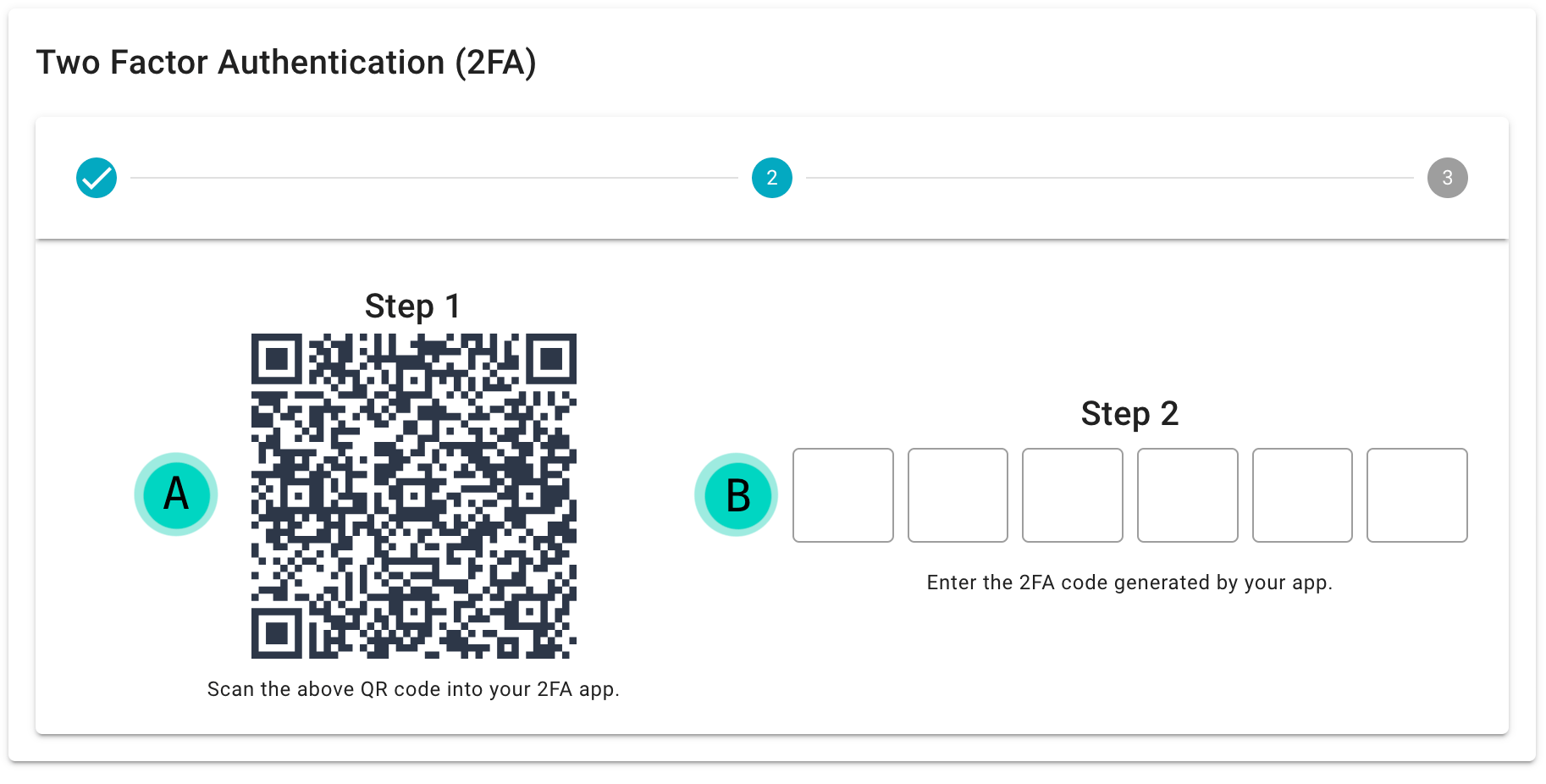
- The barcode to scan with your two factor authentication app
- The app then generates a 6 digit code — type this here to pair the device
In the 2FA app, click add a login then scan the code. Enter the generated 6 digit code into the step two box on your new system. If the codes match, two-factor authentication will be automatically enabled. If not, you will need to retry.
WARNING
You should now view and safely keep a copy of your recovery codes. Without them you will be locked out of your account if you do not have access to your device.
Once you have saved your recovery codes somewhere safe, click the button to proceed to the dashboard.
Next: Collecting custom data