

Appearance
Collecting Custom Data
Making a plan
Your clients' data is central to your experience with Secure Clinic. Before getting started, think about which data you need to record about your clients. All data you choose to store is encrypted and protected by the same strong security measures.
By default, Secure Clinic collects the following information about your clients/patients:
- First name (required)
- Last name (required)
- Date of birth (required)
- Phone number
- Address
You will likely need to store other information relevant to your business. This might include external ID numbers, next of kin details, allergy status, body measurements, and more. This is a good time to make a written plan of what information you need Secure Clinic to store.
Setting up your custom data fields
Once you have decided what data you want to store, enter it into your system settings.
In the left hand menu, click Settings. Under System Settings, find Patient Fields and click GO.
You can then click the button to create a new custom field.
WARNING
If you have important safety information that needs to be visible on every page for a patient — for example allergy status — do not save it as a custom data field. Save it as a patient alert instead, which is explained later in the tutorial.
After clicking this button, choose from the available data types:
| Type | Description | Example uses |
|---|---|---|
| Text Field | Single line of text | External ID numbers, Key worker names, Spoken language |
| Longer Text | Multiple lines of text | Miscellaneous notes, Addresses |
| Date | A calendar date | Expiry of a service, Date of vaccination, Other milestones |
| Yes/No | A value representing a yes/no, true/false or on/off | Active customer, Premium customer, Needs translator, Completed treatment |
| Item From List | Select one value from a list | Gender, Lead practitioner name, Disease category |
| NHS Number | A valid 10 digit NHS number | NHS Number |
| Number | A number, with optional limits, a unit and a whole-numbers-only restriction | Weight, Blood pressure, Session count, Pain score |
Follow the prompts to create your custom field. Give it a clear and short name. You can mark a field as required, which means new patients cannot be created without providing this information.
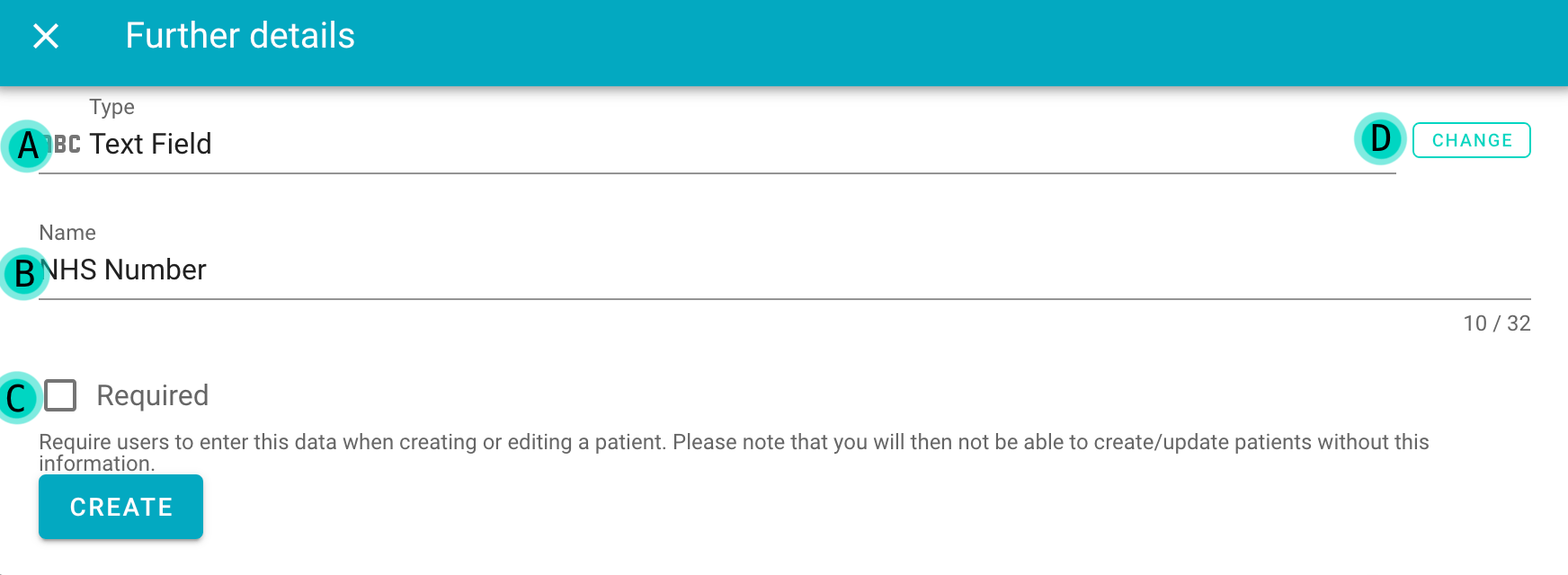
- Choose a text field to represent an external ID number
- Provide a clear label
- Decide if a field is required or not
- Change the type of the field to something else
Repeat these steps for each type of data you identified in your plan. You can always return to this page to add or remove custom data fields as your business needs change.