

Appearance
Client Self-Registration
What is pre-registration?
Depending on your business model, you may want potential leads or new patients to be able to register their own details on your system. Secure Clinic makes this easy through the pre-registration feature. Once enabled from your administrator settings, you can provide new customers with a link to a registration form we generate. They securely provide their details through this form, which you are then prompted to review inside your system before converting them into full clients.
Setting up pre-registration
NOTE
Pre-registration by clients is disabled by default and must be enabled by a system administrator.
To activate and configure pre-registrations, click Settings in the main menu. Find Pre Registrations in the System Settings menu, then click GO. To activate pre-registration, click the toggle button labelled "enable pre-registrations". This will then reveal the rest of the form.
Default setup
By default, the pre-registration form is available to everyone as a publicly accessible page on your system. The form collects the potential client's full name and date of birth. No other data is collected when using the default settings.
Customising your pre-registration form
Several settings are available to customise the pre-registration form to your needs:
| Setting | Description |
|---|---|
| Enable pre-registrations | When this switch is enabled, new pre-registrations can be accepted using the web form. |
| Require a password to access the pre-registration form | If this switch is enabled, a password can be specified that a potential client must provide to access the pre-registration form. |
| Which data do you wish to collect from potential clients on the form? | If you check the box to collect the client's email, phone number or address at pre-registration then these fields will be added to the form. If you additionally check the 'required to submit' box, potential clients will receive an error if they try to submit the form without this data. |
| Which of your custom data fields do you wish to collect from potential clients on the form? | Any custom fields that you have created will be listed here. They will be included on the form for potential clients to submit. If a custom field was marked as required when it was first created, clients will not be able to submit the form without providing this data. |
| Privacy Policy | Provide a link to your organisation's privacy policy, which will be displayed to your users. This is likely to be necessary to comply with data privacy laws. |
| Message shown to clients after completing the form | Provide a message telling clients what to expect after you have received their pre-registration. For example, you might give them a timescale and information on how you will contact them. |
| Choose users to receive an email notification when new pre-registrations are received | Pick any number of users to be notified by email when pre-registrations are received through your form. |
Collecting your custom fields on your pre-registration form
You can include any custom fields on your pre-registration form. Drag the fields from the right (grey) column to the left (blue). Fields are displayed in the order you drag them into the left column. If a custom field is marked as required, it will also be required to submit the pre-registration form.
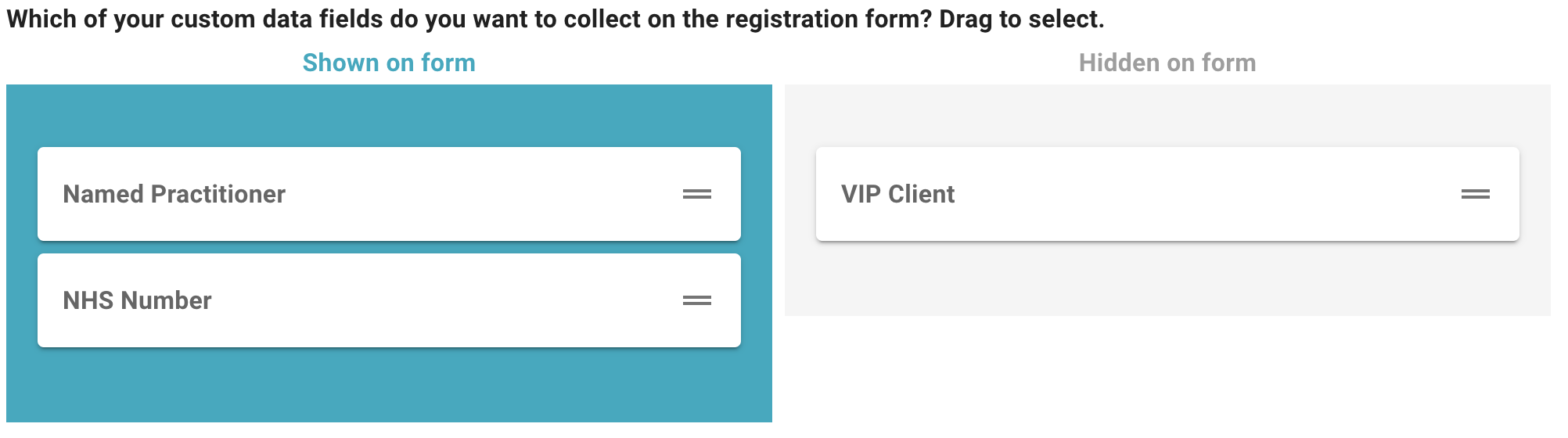
In this example the named clinician and NHS number custom fields will be displayed on the form, whilst the VIP client custom field would not.
Reviewing pre-registrations
Once a new pre-registration has been submitted, email notifications are sent to the users specified in settings with a link to review the form. Pre-registrations are also visible in the main menu when logged in, alongside a counter showing how many are waiting for review. Clicking this opens the list of all pre-registrations. Click Review to open a form. You are then presented with the information the user has provided. At the bottom of the form, you have three options:
- Reject — the pre-registration is deleted. No patient is created.
- Report as spam — the pre-registration is deleted. No patient is created. The Secure Clinic team are notified and will investigate any spam submissions.
- Accept — a new patient is created using the details provided on the pre-registration form.
If you wish to edit a pre-registration, you first need to accept it. You can then make changes to the created patient.