

Appearance
Security Logs
Reviewing security logs
Secure Clinic automatically creates logs of important actions related to your user accounts.
A log is created each time:
- A login succeeds on an account
- A login is attempted but fails due to an invalid password
- A login succeeds but two-factor authentication is not passed
- The password is changed for a user
- Two-factor authentication is enabled or disabled for a user account
Review these logs regularly to identify any attempts to compromise the security of your user accounts. Secure Clinic will also alert users on their dashboard if any new important logs have appeared since they last logged in.
IMPORTANT
If you notice any unusual activity on your account or the accounts of your users, contact us as soon as possible.
How to view security logs
While logged in as a user with the system owner role, click Settings in the main menu. Find Users under System Settings and click Go. A list of users appears. Click Security Log next to the user of interest.
The security logs appear and may be split across multiple pages. Logs are sorted by date, with the most recent first. You can filter to show only high-risk events using the checkbox at the top of the list.
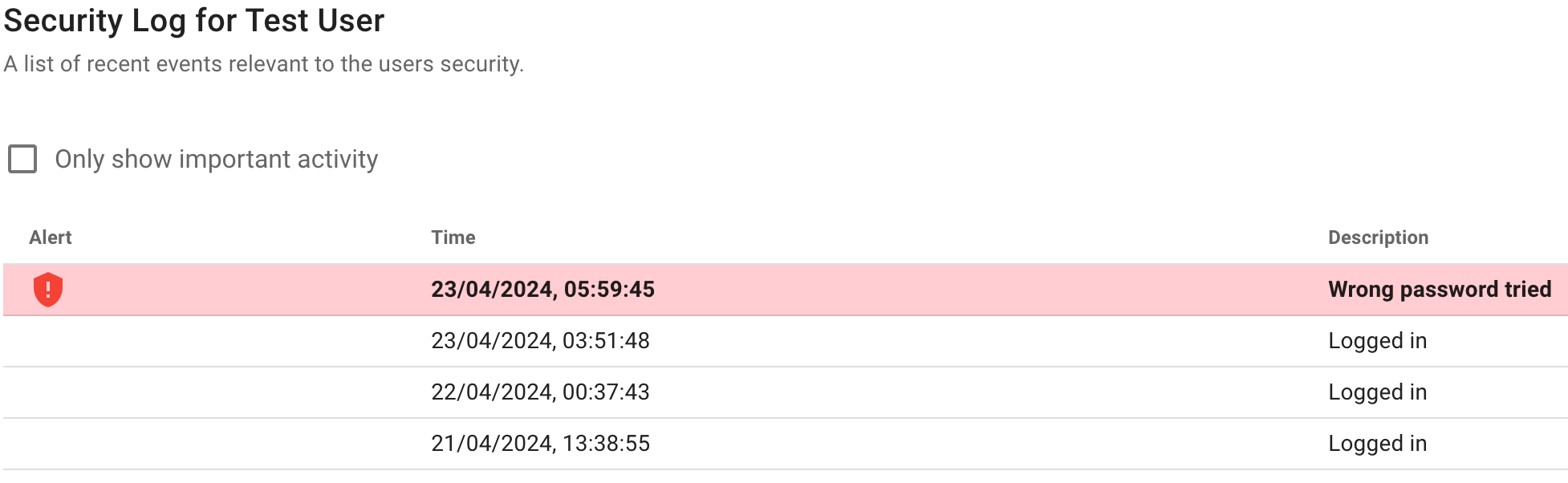
Example of security logs recorded for an account.
WARNING
If you are worried about entries in your security log and think one of your accounts may have been compromised, you must contact us immediately.