

Appearance
Inviting Your Team
Secure Clinic for teams
Secure Clinic allows you to invite an unlimited number of colleagues to join your team. Invitations are in two parts to improve security. Team members are assigned roles which limit the actions they can take on your system. The available roles are:
| Role | Description |
|---|---|
| Account Owner | Users in this group can access every part of the system and can make any changes, including to your subscription. They can also invite new users. |
| Clinical Access Role | Users in this group can access a patient's notes journal and read/add entries. They can edit data about patients, but cannot make system-wide changes and cannot invite other users. |
| Administrative Access Role | Users in this group can view and update a patient's identifying information and custom data, but cannot view entries in a patient's journal. They cannot make system-wide changes and cannot invite other users. |
The first account you created in the setup process is automatically given the role of account owner. You can add additional account owners, but must always have at least one.
Inviting a new user
To invite a new user, click Settings in the left hand menu, then click GO in the Manage Users section, then click Invite New User. You will be prompted to enter the new user's full name and a valid email address, and to pick a role from the table above.
TIP
You should always pick the most restricted role possible for your users. This limits the damage if their account is ever compromised. For example, prefer assigning a user the administrative access role rather than the clinical access role.
Once you complete the form, your new user will be emailed with further instructions. You will then be shown a confirmation code that you need to give to your user directly before they can create an account. This prevents you from accidentally inviting the wrong person and exposing your data.
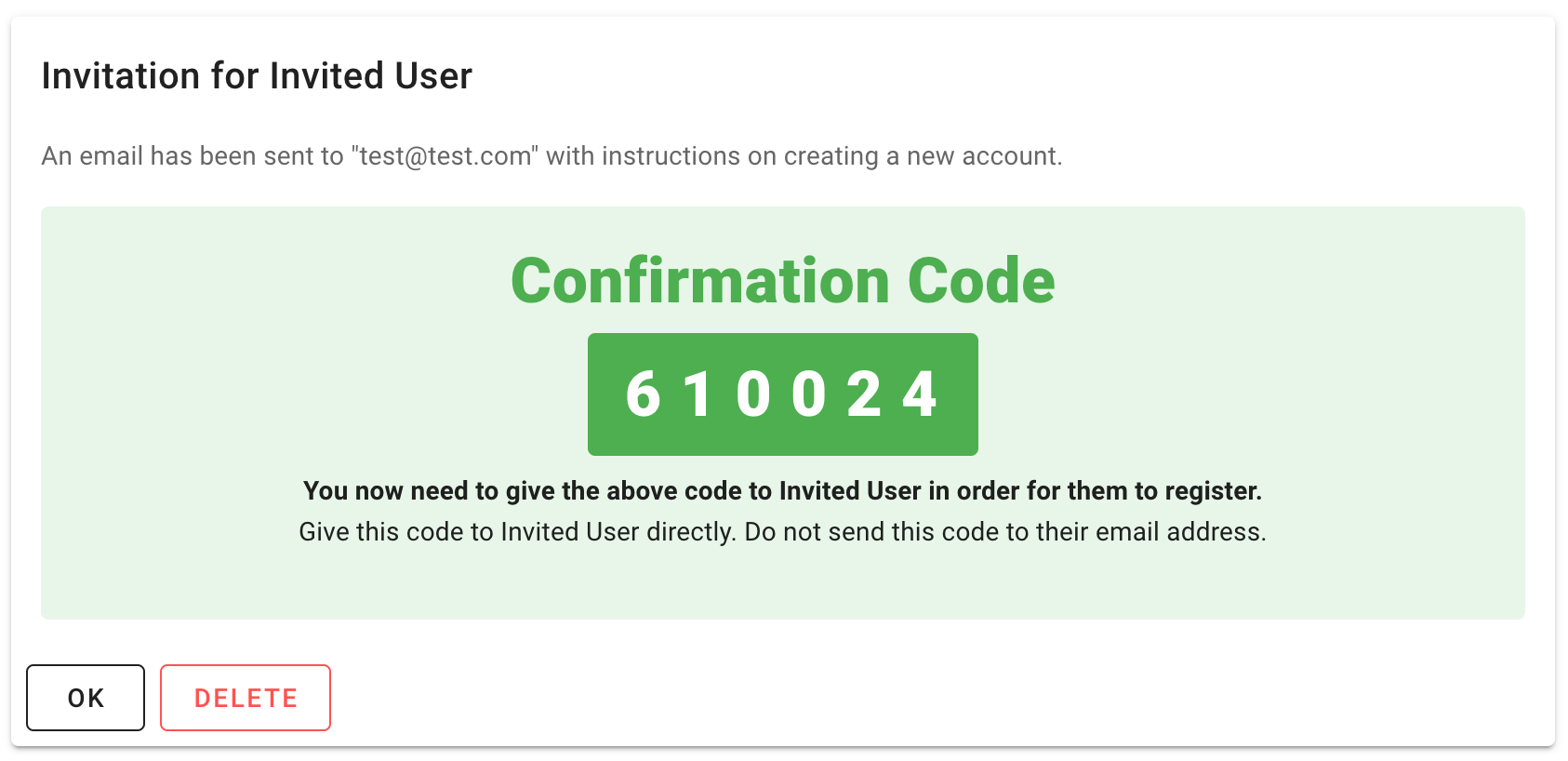
In the above example, you would need to contact your new user and give them the confirmation code before they can create their account. Give the code to the user in person or by telephone to ensure you are speaking to the correct person. Do not email them this code.
TIP
The invitation is valid for 48 hours. If your user does not create an account in this window, you will need to delete and resend the invitation.
You can invite as many users as you wish. You can revoke invitations from the Manage Users page, where you can also edit and deactivate users. You are always required to have one active user with the System Owner role.