

Appearance
Text Entries
Storing entries in a patient's notes
Secure Clinic allows you to store any amount of formatted text in the private medical record of your patients. Select the patient you wish to record an entry for, and open the Notes tab. To store a new text entry, click Compose New Entry. The composer opens with a number of options:
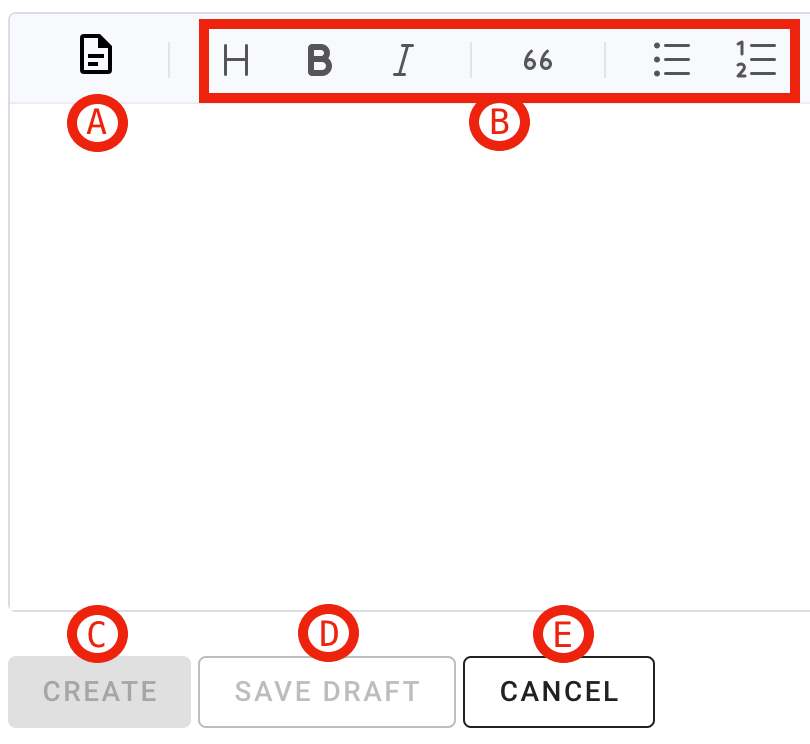
- Manage templates
- Formatting options
- Create button
- Save draft manually
- Cancel entry creation
- Templates: you can create reusable templates for your text entries. See template documentation for more information.
- Formatting: choose from a variety of headers, bold and italic styles, quotation formatting, and both bulleted and numbered lists.
- Drafts: drafts are automatically saved as you create your entry. One draft can be saved per user, per patient. You can manually save a draft by clicking the save draft button.
Editing a text entry
You can edit text entries that you have written in a patient's journal. Users with the system owner role can also edit entries written by other users. Click Edit to open the editor screen, make your changes, and save. A log of changes to the entry is automatically kept for governance purposes.
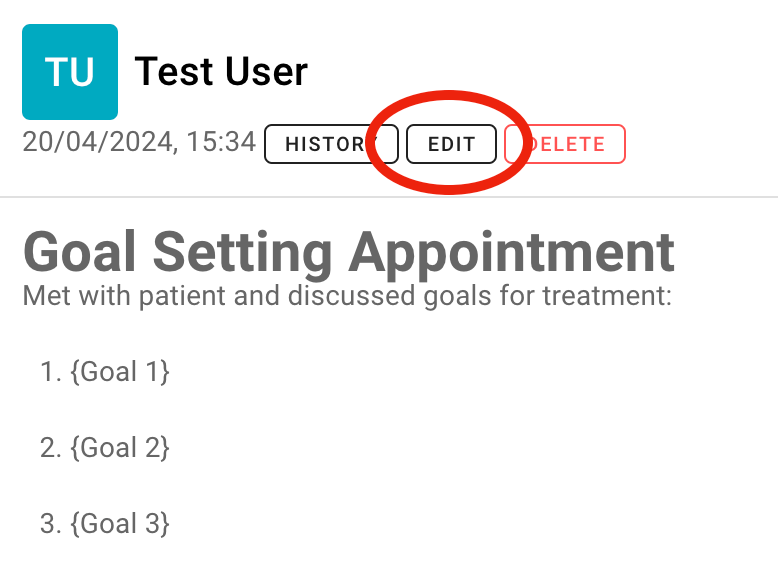
Click the edit button to make changes to a previously created text entry.
Viewing history of a text entry
All changes to text entries are logged to help meet the governance requirements of your organisation. To view the audit trail for a text entry, click History on the entry. Changes are highlighted, with dates and authors recorded:
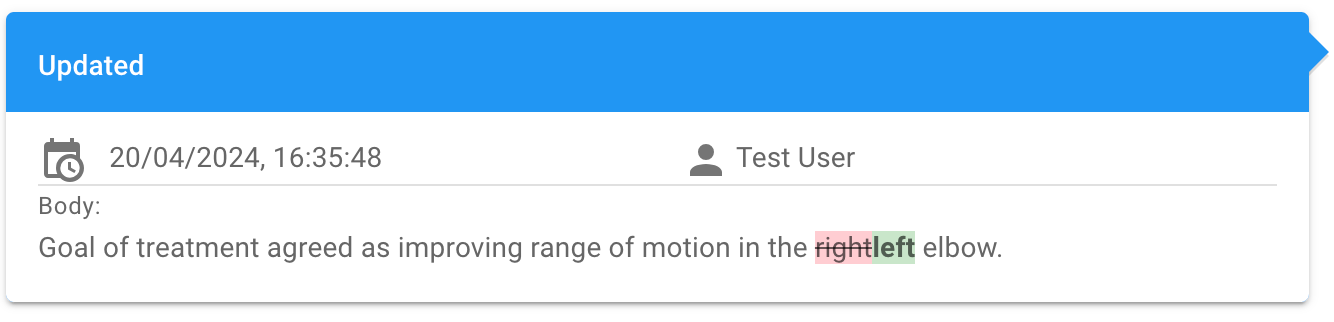
Example of how changes to text entries are automatically recorded.
If you can edit an entry, each recorded change also offers a Revert button that puts the entry back as it was before that change. See reverting changes for more information.
Deleting or restoring a text entry
If an entry has been made into a patient's notes in error, it can be deleted. Users can delete their own entries, and users with the system owner role can delete any text entry. To comply with information governance standards, deleted entries remain visible in the patient record but are marked as deleted. They can also be restored by pressing the restore button.